iPad Lesson Plans: Mathematics and Social Studies

Michele O'Dell of the Douglas Country School District has constructed two interesting iPad lesson plans as part of her ETIL study group. This is an excellent example of a classroom teacherbeing given access to both the technology and the appropriate in-servicing so they can focus on the pedagogy. Michele has put together a couple of comprehensive lesson plans that could easily be used as a template for other teachers. 

ETIL is the state of Colorado's acronym for Educational Technology Information Literacy.  ETIL expectations are a part the requirements set forth by No Child Left Behind and C.I.T.E. (Continuous Improvement of Teacher Effectiveness). Michele has made good use of her time at the ETIL Academy.


ETIL Lesson 
Michele O’Dell 
Storyrobe with iPad


Your Name:     Michele O’Dell
Grade Level / Subject Area: Mathematics


1. Which essential question, content area GLE / Standard, or ISTE NETS for Students or NETS for Teachers was the objective of this lesson?  

ISTE NETS for Students
1. Creativity and Innovation
Students demonstrate creative thinking, construct knowledge, and develop innovative products and processes
using technology. Students:
a. apply existing knowledge to generate new ideas, products, or processes.
b. create original works as a means of personal or group expression.
c. use models and simulations to explore complex systems and issues.
d. identify trends and forecast possibilities.

2. What resources (technology / information) did you use to help achieve this objective? 


Doc Camera
iPad
Storyrobe iPad App
Whiteboard App
Everyday Math Curriculum - Unit 6 Geometry
Coolmath’s Online Dictionary
morgueFile Photos

Read full article:

WiFi Printing from your iPad

This is from a website called Netputing and offers a way of WiFi sharing a printer. Hit your print button on your iPad from anywhere within the WiFi range. This is handy if you or your students are needing to print within the classroom. I know, I know, we shouldn't be printing anyway but every now and again there is something that just needs to be printed. Here is one option and it only takes about 2 minutes to set up. Enjoy!!!

AirPrint Activator
AirPrint is a small application that will enable a Mac OSX 10.6.5 + iTunes 10.1 hidden feature to allow your 
shared printer to be visible on your iOS 4.2.1 devices.  AirPrint allow you to print from new generation of Apple iPhones,iPad and iPod Touch to a printer shared over your personal WiFi network.
You only need to run AirPrint Activator once.  Once AirPrint has been turned on it will remain on even after a reboot.
Download:
Download the latest beta version compatible with OSX 10.5,10.6 and 10.7 (Lion) from the AirPrint Activator v2 web page.
Download the latest version: AirPrint Activator v1.1.3
              or
use version 1.1.2 if the latest version is reporting that it is not supported on your system: AirPrint Activator v1.1.2
Apple requested that I take down the AirPrint Hacktivator page as they stipulate that the application is distributing copyrighted source code and/or software. @irPrint Activator is now replacing the defunct AirPrint Hacktivator application.  It provide the same functionality without the use of any Apple files.
You can use AirPrint Activator as a replacement of the previous generation Hacktivator application.  If present, it will take care of cleaning any Apple files installed by the previous generation Hacktivator when you “deactivate” AirPrint. It will only inject a single line in a CUPS configuration when you select to “activate”AirPrint.
System Requirements:
  • OSX Snow Leopard 10.6.5,10.6.6 or 10.6.7 (Not currently supported under OSX Lion 10.7 beta)
  • iTunes 10.1 +
HOW TO activate AirPrint:
1. Launch AirPrint Activator:
2. Click on the togle switch:

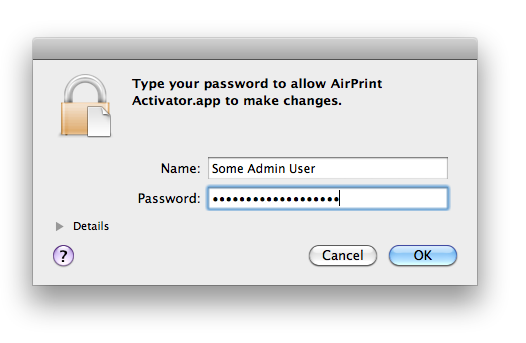
3. Enter the admin password:

4. A window will appear instructing you to remove/add/share the printer you want to use with AirPrint:
Click OK.
5. Open System Preferences/Print &Fax and:
  • Remove
  • Add
  • Share
the desired local printer.  The following youtube clip will show you how:


Original Article:
http://netputing.com/airprintactivator/

Quick edit Videography with iMovie for iPad

This is a How-To-Article written by Wes Fryer over at Speed of Creativity. It is a great resource for classroom teachers who are using the iPad to edit video with their students. If you do have access to iPads and have been unsure how to proceed with iMovie than this is a fantastic resource.

Wes has a great blog about 21st Century Digital Learning. He has a comprehensive list of articles that are worth reading. Make sure you take the time to visit his site. Enjoy!!!


Quick Editing with iMovie for iPad:

The following steps are included in the "Video" chapter of the forthcoming EPUB eBook, "Playing with Media: simple ideas for powerful sharing." This is an example of "quick-edit" videography, which can compliment "no-edit" videography in support of the "ethic of minimal clicks." This final video, "Learning About NASA Mission Control in Houston," is available on YouTube.
After recording a series of videos using an iPad, the iMovie app ($4.99) can be used to edit and combine the videos into a single file. That video file can then be directly uploaded to YouTube from the iPad, using an available wifi Internet connection.
1. Start an iPad iMovie by clicking the “+” icon at the bottom of the screen.